Scanning failures in your POS system
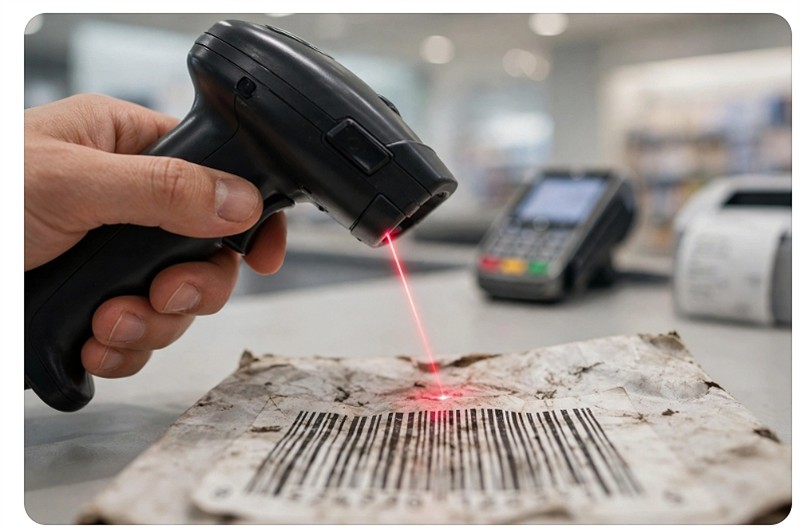
When barcodes won't scan, your business suffers. Here are some of the problems it causes:
- Your checkout runs slow, because scanning is much faster than typing a code in by hand.
- You often cannot give customers detailed receipts.
- Your stock history becomes unreliable.
- Your stock quantities drift out of truth.
- Manual entry makes more mistakes.
It is better to scan more.
Start with your scan rate
Before you fix anything, get a feel for the size of the problem. This is easy to measure.
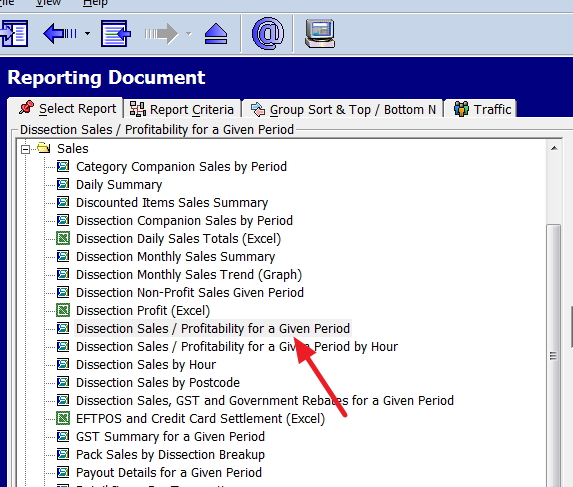
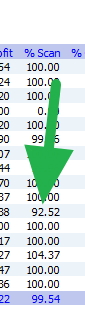
Go to sales and select Dissection Sales / Profitability for a Given Period, then run the report. I usually do it for the previous 12 months.
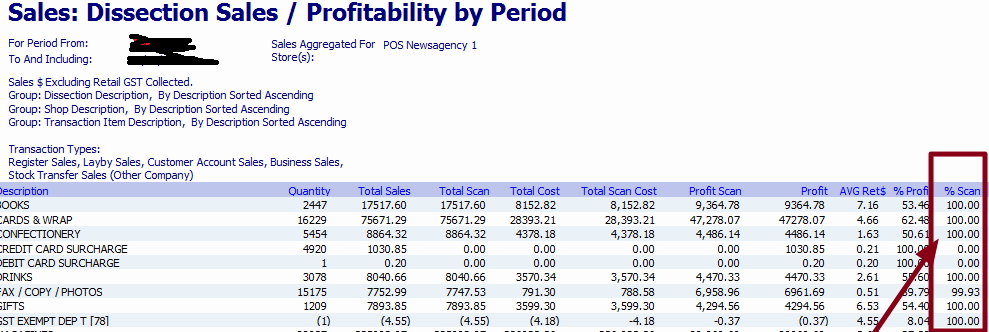
You will see a column marked %Scan. The higher, the better. In the example below, the green arrow marks a problem department.
 \
\
Is it the scanner or the barcode?
There can be many causes, but there is a simple test: scan the same item on every scanner you own.
- If it fails on one scanner but scans on others, the problem is with that unit.
- If every scanner fails on the same items, the problem is the barcode itself — either the supplier's or one you printed yourself.
Fixing the scanner
If it is the scanner, try these before you replace it:
- Experiment with scanning height. The best distance varies with the barcodes you use and the type of reader, so take a few items and see what works.
- Move it away from bright light. Direct sunlight and glare confuse scanners.
- Clean the scanner and the printer. A dirty or scratched scan window is the most common cause of read failures. A rag and some cleaning fluid can do wonders.
- Check the age of the unit. Scanners are typically built to last about three years. If yours is older and misbehaving, replacing it is often cheaper than the staff time it wastes.
Fixing the barcode
If the barcodes are the problem, look at these common causes:
- Red barcodes. Many scanners use red lasers, which cannot read red bars at all. Black on white is the reliable combination. Gift and card lines are the usual offenders — if a supplier prints in red, ask for a replacement label or overprint your own.
- Missing quiet zones. Every barcode needs blank space on either side. Often, badly printed text, borders, or shrink-wrap seams printed around the barcode cause failures.
- Crooked or shiny labels. Scanners read barcodes perpendicular to the bars, so an angled label effectively shortens the bars and this can make the code harder to read. Keep the barcode flat and straight. Avoid sticking barcodes on shiny or curved surfaces, where light reflects back into the scanner.
- Your own printing. If you print your own labels, check the printer. Dirt on the printhead causes poor ink distribution, but a worn printhead, a fading ribbon, or cheap thermal paper produce low-contrast codes just as often. Clean first, replace the printhead if that fails.
- Damaged stock. Dirty, wet, or stapled-over barcodes will not scan. There is no fix for these except a new label.
Bonus tip: pick a spot and stick to it
Make a convention in your shop for where the barcode goes — front, top, back, whatever you choose. Apply it everywhere. Staff stop hunting for the code, and checkout speeds up.
One more thing: if you want the bigger picture on scan rates and what drives them including barcodes your suppliers never put on the goods at all.
Now there can be many causes of this problem. The first point is to test whether it is happening on a scanner. Sometimes you improve your barcode scanning rates from this scanner by:
-Experiment with your scanner what height it reads best with the barcodes that you use. It will vary depending on what barcodes you use and your barcode reader. Please take a few items, try and scan them and see what works best.
-Maybe the scanner is in bright light, so try moving the scanner to a different location.
-Try putting the barcode straight. Sometimes not having the barcode straight can cause problems for a scanner to read the barcode. It is also less of an eyesore.
-Avoid putting barcodes on shiny objects as the light will reflect into the scanner and cause problems.
-Cleaning your barcode scanner and printer can help immensely. A rag and some cleaning material can often do wonders.
-Remember, dirty or wet barcodes or barcodes with staples are not suitable for scanning.
Suppose all scanners see if the problem is the suppliers' or your barcodes. If it is your barcodes, check your printer; it may be dirt causing poor ink distribution.
Remember that sometimes you have to replace these units if the goods you sell are not suitable for what you sell or if they have deteriorated.
A bonus tip
You can increase your scan rate if you make a convention in your shop where you will stick the barcode. The front, top, back, etc., stick with it if possible; this will save people from having to hunt for the barcode.
Written by:

Bernard Zimmermann is the founding director at POS Solutions, a leading point-of-sale system company with 45 years of industry experience. He consults to various organisations, from small businesses to large retailers and government institutions. Bernard is passionate about helping companies optimise their operations through innovative POS technology and enabling seamless customer experiences through effective software solutions.