
Transaction notes are essential yet often overlooked. They allow retailers to add context to a sale. Documenting issues such as defects, warranty voids, or strict sale conditions provides a paper trail that protects your business and enhances customer service.
These details can often resolve a dispute and possibly prevent a customer from leaving. This guide explores why you should be using notes and how to master them in your POS software.
Why Add Notes to a Transaction?
There are many scenarios where a simple receipt isn't enough. You need to record the "story" behind the sale. Here are the most common reasons to add notes:
Damaged or Defective Items
If an item is sold "AS IS" due to a scratch or dent, a note prevents what sometimes happens: a customer returns it later, claiming they received it in perfect condition.
Strict Conditions
Record specific terms, such as "Not for use in Australia" or "Commercial use voids warranty".
Irregular Transactions
Any sale that falls outside your normal process needs an explanation.
Special instructions for use
Some items sold do require special handling for best performance or danger if misused.
Adding a note provides important details that give context to the transaction. This additional information can be invaluable if there are questions or disputes about that sale. Based on my years of retail experience, I can think of many examples where documented transaction histories would have reduced the time spent on disputes.
Step-by-Step: Adding Notes to Transactions
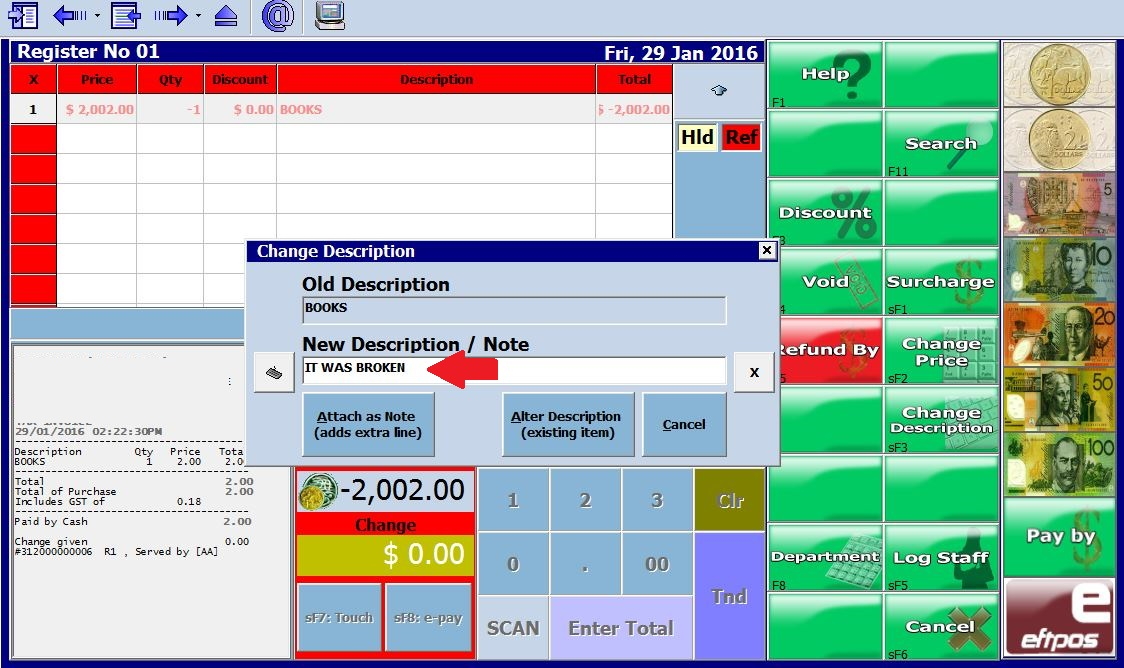
Our POS software allows you to add notes to any transaction seamlessly. We have designed the process to be quick, so it doesn't slow down your checkout line. Detailed instructions for adding notes are here but the procedure is very simple.
1. Initiate the Note
During a transaction or return, select the Change Description button on your screen.
2. Select "Attach as Note"
From the dropdown menu options, click Attach as Note to open the text field.
3. Enter Your Details
Type the specific reason for the Note. For example, you might type: "IT WAS BROKEN - Spine damage."
4. Save the Transaction
Complete the sale or return as usual. The Note is now permanently attached to that specific transaction record.
Enhanced Reporting and Search
Once these details are captured at the register, they become powerful data points in your back office. You don't have to rely on memory to recall why a refund was processed three months ago.
Finding Specific History
Users can search for specific historical transactions using a wide range of filters. For example, if you need to find a refund issued years ago for a book with a broken cover, you can do so in seconds.
By filtering for keywords like "broken" or "torn," the system will generate a report of all books sold with those specific notes. The person reviewing the transaction history will see precisely why the return occurred.
Simplified Filtering
Searching transactions is simplified with this tool. You can easily pull up all transactions with notes mentioning 'damaged', 'discount', or 'clearance'. This saves you hours of digging through paper receipts or unlabelled digital records.
Train Staff on Procedures
Train staff on proper procedures for adding notes. The notes are only helpful if they accurately and thoroughly document each unique transaction situation. Set clear expectations and guidelines so everyone uses the same language.
Conclusion
Our POS software provides tools you can use. Here, it simplifies accessing information to satisfy customers, streamline operations, and foster growth.
Frequently Asked Questions (FAQ)
Q: Why should I add notes to transactions?
A: Adding notes gives essential context about irregular transactions, clarifying records and ensuring transparency if questions or disputes arise.
Q: What kinds of transactions need notes?
A: Notes are helpful for exceptional situations such as damaged/defective items, special handling, clearance markdowns, customer disputes, or warranty voids. Essentially, record anything out of the ordinary.
Q: How do I add a note to a transaction?
A: When ringing up a sale, select the "Change Description" button and choose "Attach as Note". Type your Note explaining the transaction, which will be saved with the record.
Q: Can I view and edit notes later?
A: Yes, you can view notes on the transaction details screen at any time. Notes can also be accessed and reviewed through transaction reports.
Q: How do notes help with reporting and analysis?
A: Notes allow for more detailed sales data and tracking. You can search and filter transactions by keywords in the notes field to identify trends in returns or defects.
Written by:

Bernard Zimmermann is the founding director of POS Solutions, a leading point-of-sale system company with 45 years of industry experience, now retired and seeking new opportunities. He consults with various organisations, from small businesses to large retailers and government institutions. Bernard is passionate about helping companies optimise their operations through innovative POS technology and enabling seamless customer experiences through effective software solutions.